Updating Org Charts
Below are instructions for how to update the org charts featured on this site.
There are two org charts that need to be periodically updated on the Design & Construction website:
- Capital Project Management Org Chart
- Manhattanville Development Group Org Chart
Updating these org charts is very simple, but the process for uploading the new org charts into the site may seem a little confusing. The step-by-step instructions below will guide you through the process.
Video Tutorial
Step-by-Step Instructions
- First, log in to the website using your UNI and password at https://designconstruct.cufo.columbia.edu/user.
- The most important part of the update process is that the org charts are given a very specific file name prior to uploading. The links on our site pointing to these org charts point to these file names, so by keeping the file names the same when uploading updates, the links will continue to work correctly.
- If you are uploading updates to the Capital Project Management org chart, please make sure that the file is in PDF format and that you have saved the file as CPM-Org-Chart.pdf
- If you are uploading updates to the Manhattanville Development Group org chart, please make sure that the file is in PDF format and that you have saved the file as MDG-Org-Chart.pdf
- If you are uploading updates to the Capital Project Management org chart, please make sure that the file is in PDF format and that you have saved the file as CPM-Org-Chart.pdf
Once you've confirmed that the files are named correctly, proceed with the steps below.
In this next series of steps, you will be:
- accessing the file storage area of the website\
- navigating to where the current versions of the org chart are stored
- deleting the current versions of the org charts
- and uploading the updated versions.
Completing all of these steps will correctly replace the org charts on the site and ensure they are accessible to users.
1) To access the site's file storage area, click here (in some browsers this will open a new tab, in others it will replace these instructions—right click the link and choose Open In New Tab if that happens.) You should now see a window similar to the one below.
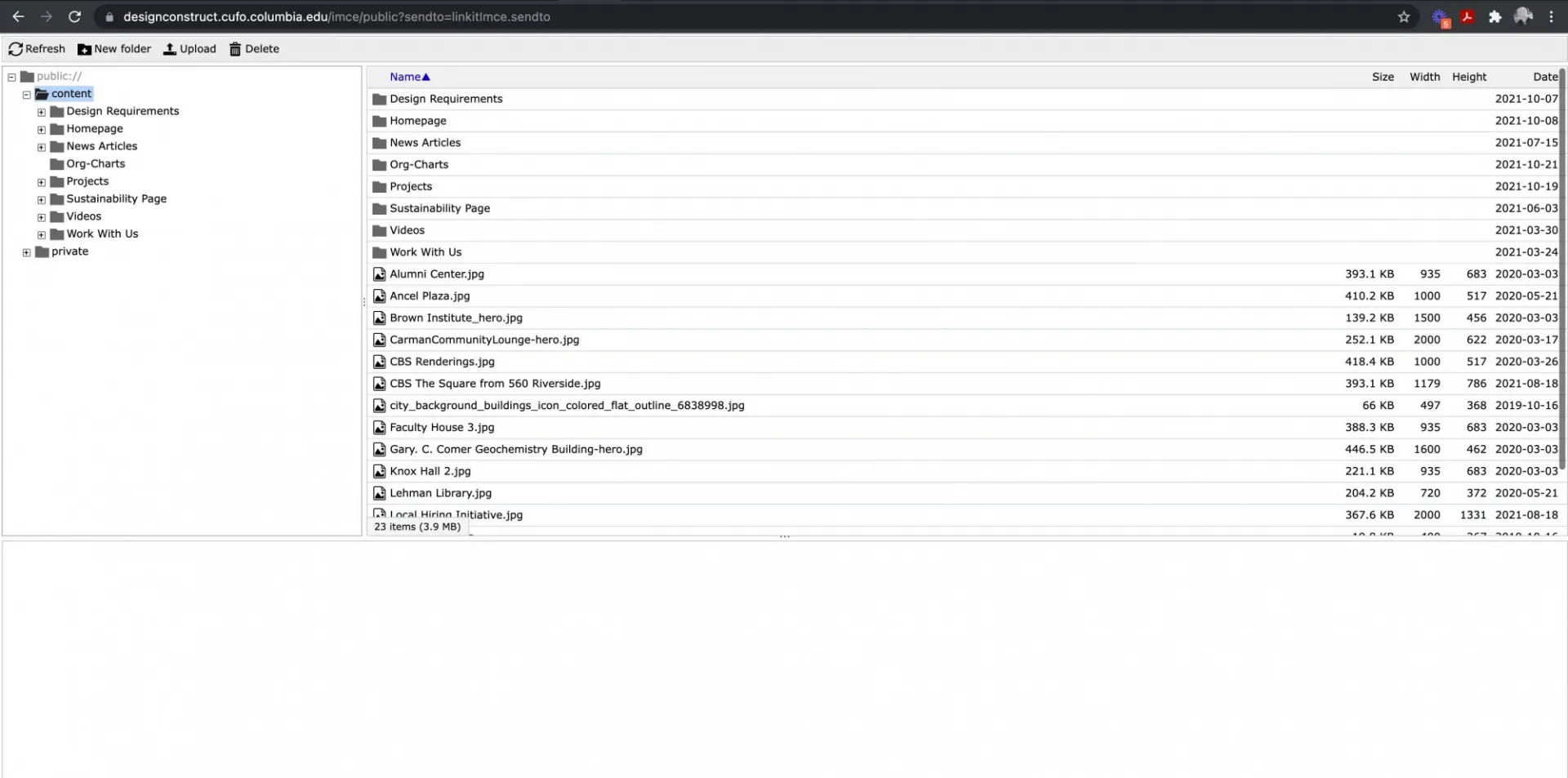
2) On the left hand side you will see a menu showing the folder structure of the site. One of the folders shown is called "Org-Charts". Click once on Org-Charts to display the contents of the folder.
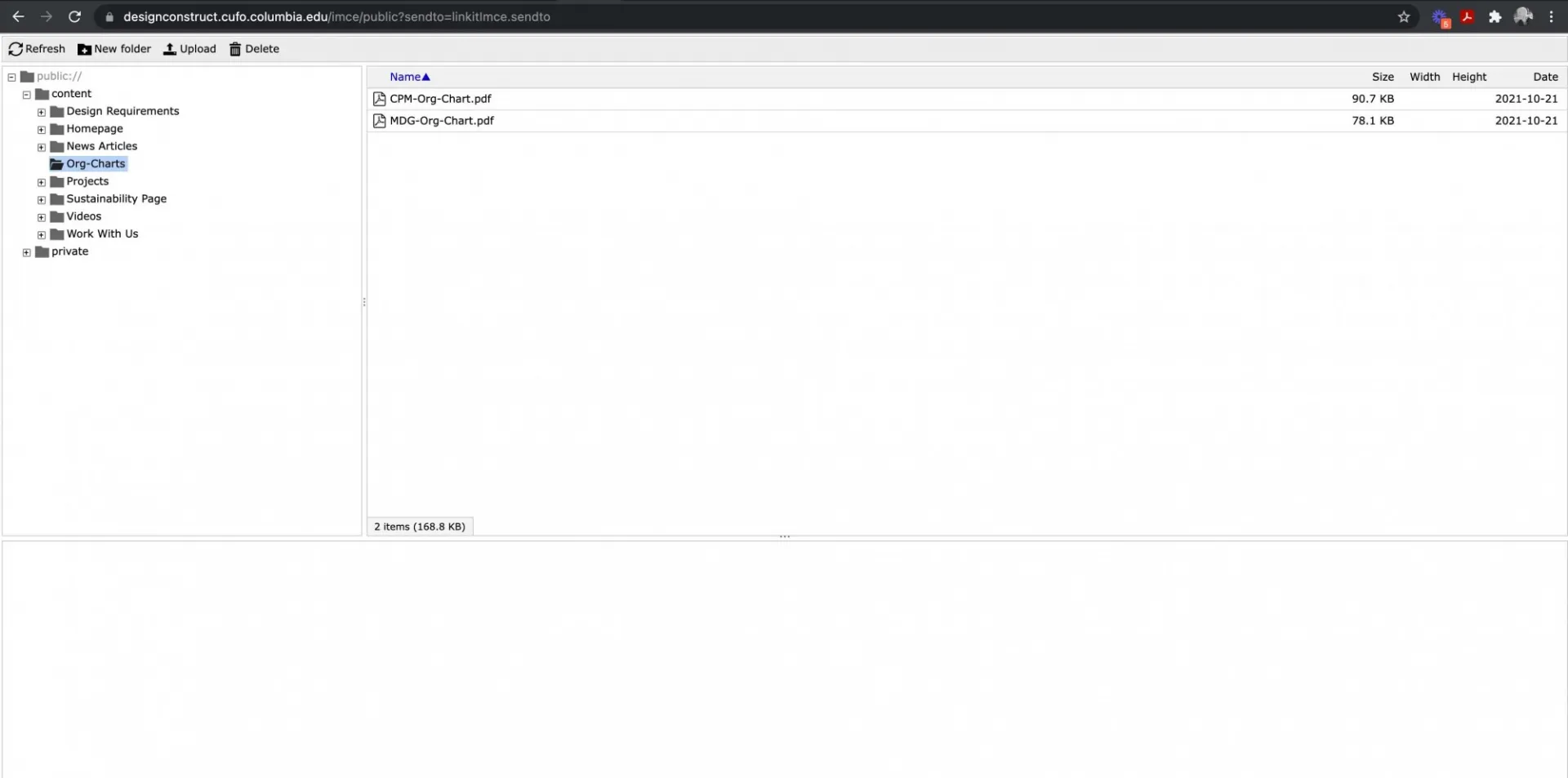
3) Uploading a new org chart into this folder will not overwrite the currently uploaded file, so we need to delete the org chart(s) you are updating prior to uploading the replacement file. To do so, click on whichever org chart you will be replacing so that it is highlighted. Then click the Delete button in the menu. Confirm that you want to delete the file. Repeat this process for both org charts if you are replacing both.
4) Once the current org chart(s) are deleted, click the Upload button in the menu. A button with the text "Add File" will appear - click that button. A window will appear allowing you to browse your hard drive to locate the org charts to be uploaded. You can upload one file at a time or both files at the same time by selecting both, then clicking "Open". If you upload the files separately, just repeat this process for the second file once the first is uploaded.
5) Confirm that you see both org charts with the correct file names in the File Upload Manager window, as shown below. If so, you have successfully finished updating the files and can close the File Upload window. Thanks!